Tutte le risorse tecniche relative alla serie Fairino in un unico posto: schede tecniche, manuali d'uso, modelli 3D, SDK gratuiti e certificati. Stai progettando qualcosa di specifico? Contattaci.
Come accedere all'interfaccia web di Fairino (WebApp) e le credenziali di accesso predefinite. Per motivi di sicurezza, modificare la password dopo il primo accesso.
La porta di controllo del robot (interfaccia della pulsantiera) ha l'indirizzo IP predefinito 192.168.58.2. Collegala al tuo computer con un cavo di rete, imposta il tuo computer su 192.168.58.10 (stesso segmento di rete), quindi apri Google Chrome e vai all'indirizzo 192.168.58.2 per accedere all'applicazione web teach pendant .
Apri la guida alla connessioneL'account amministratore predefinito è "admin" con password "123" (numero di lavoro 111, accesso completo). Esistono anche altri ruoli predefiniti, come programmatore (444), operatore (555) e supervisore (666). Modificare la password predefinita dopo il primo accesso.
Apri la guida all'accessoCarico utile 3 kg, raggio d'azione 622 mm, ripetibilità ±0,02 mm. Specifiche complete, curva di carico e prezzi.
Visualizza caratteristiche e prezzoCapacità di carico 5 kg, raggio d'azione 922 mm, ripetibilità ±0,02 mm. Specifiche complete, curva di carico e prezzi.
Visualizza caratteristiche e prezzoConfronta la capacità di carico, la portata e i prezzi dell'intera Fairino sulla nostra pagina dei prodotti.
Sfoglia tutti i modelliFAIRINO ufficiale FAIRINO , i certificati e i pacchetti scaricabili sono disponibili nel portale della documentazione.
Download disponibiliScarica le ultime versioni del software e del firmware del controller Fairino, complete di cronologia delle versioni e note di rilascio, dal portale ufficiale di download. Mantieni il tuo cobot aggiornato all'ultima versione.
Scarica l'ultima versione del softwareCapacità di carico 10 kg, sbraccio 1400 mm, ripetibilità ±0,05 mm. Specifiche complete, curva di carico e prezzi.
Visualizza caratteristiche e prezzoCarico utile 16 kg, raggio d'azione 1034 mm, ripetibilità ±0,03 mm. Specifiche complete, curva di carico e prezzi.
Visualizza caratteristiche e prezzoCapacità di carico 20 kg, sbraccio 1854 mm, ripetibilità ±0,1 mm. Specifiche complete, curva di carico e prezzi.
Visualizza caratteristiche e prezzoCapacità di carico 30 kg, corsa 1403 mm, ripetibilità ±0,1 mm. Specifiche complete, curva di carico e prezzi.
Visualizza caratteristiche e prezzoFR3-WMS, FR3-WML, FR5-WML e il modello per camere bianche FR3-C: versioni della serie FR con polso cavo e per saldatura, con specifiche e prezzi per ciascuna variante.
Confronta le variantiQuali certificazioni si applicano a ciascun modello: IP65, CE-EMC, CE-MD, sicurezza funzionale, RoHS, NSF e antideflagrante, elencate per ciascun modello FR.
Matrice dei certificati apertaIl carico massimo che un cobot è effettivamente in grado di sollevare dipende dalla distanza tra il baricentro dell’utensile e la flangia. Scegliendo uno dei modelli riportati di seguito, potrai visualizzare la curva ufficiale del carico utile tratta direttamente dal manuale d’uso FAIRINO. L’inviluppo blu rappresenta le prestazioni complete e copre quindi la maggior parte delle traiettorie. L’inviluppo rosso indica la capacità di carico utile estesa, che richiede la modalità di ottimizzazione temporale con accelerazione limitata oppure un raggio d’azione ridotto.
Scegli un cobot per visualizzarne la curva ufficiale di carico utile. L'asse orizzontale rappresenta lo spostamento del baricentro dell'utensile e del pezzo misurato dalla flangia, mentre l'asse verticale indica il carico utile che è ancora possibile trasportare a tale spostamento.
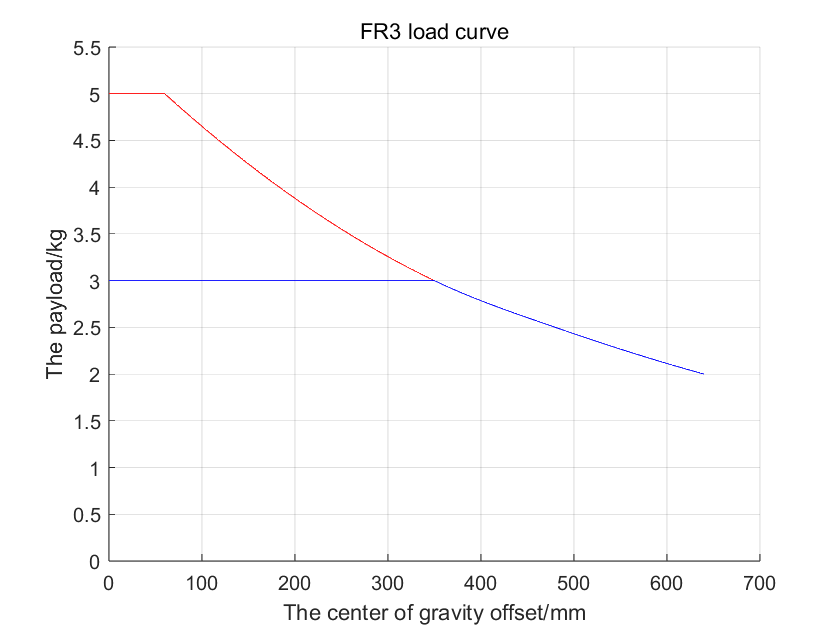
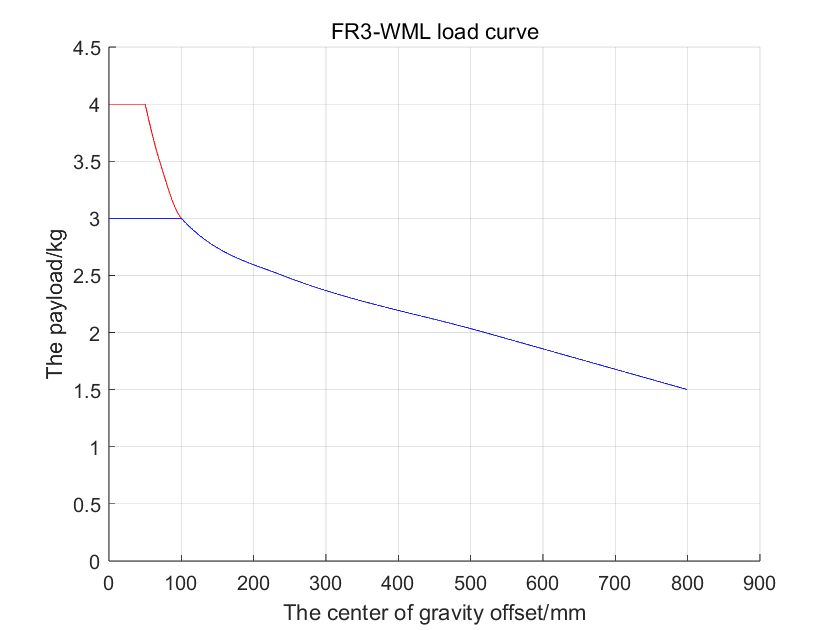
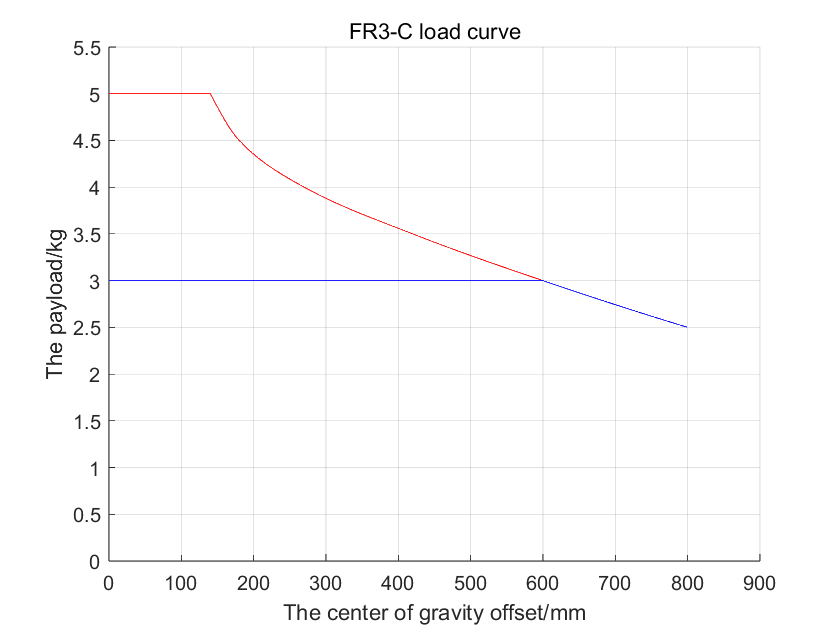
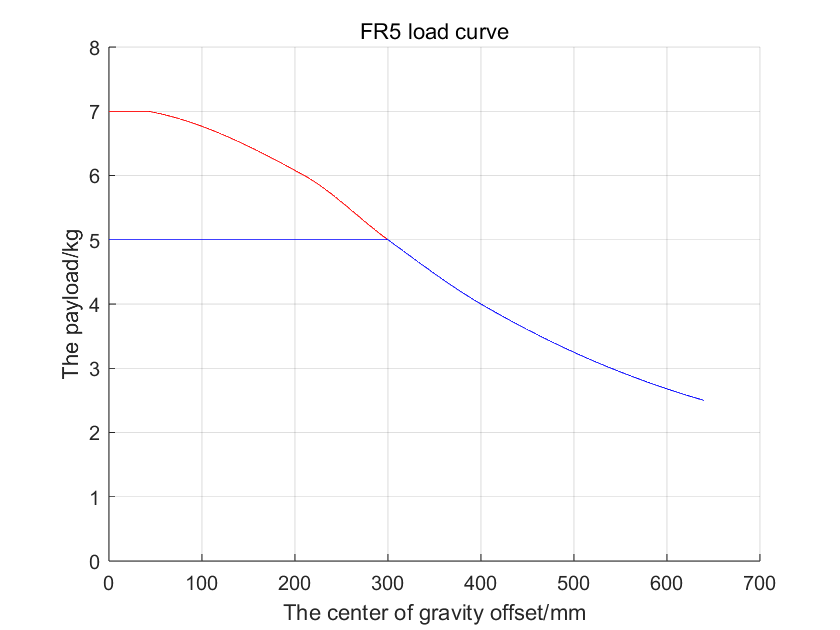
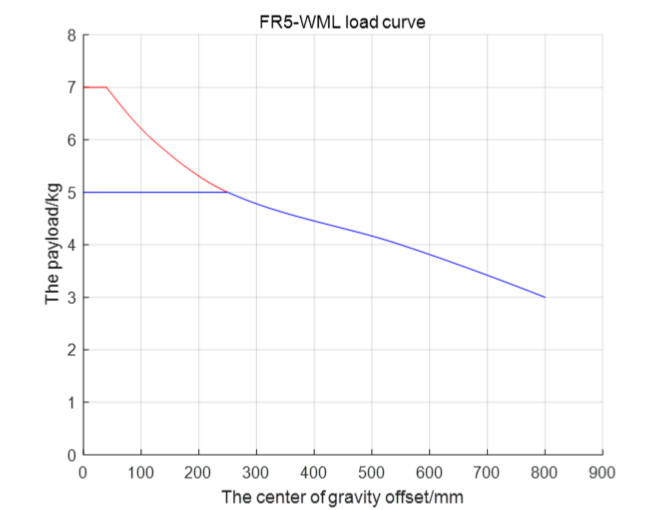
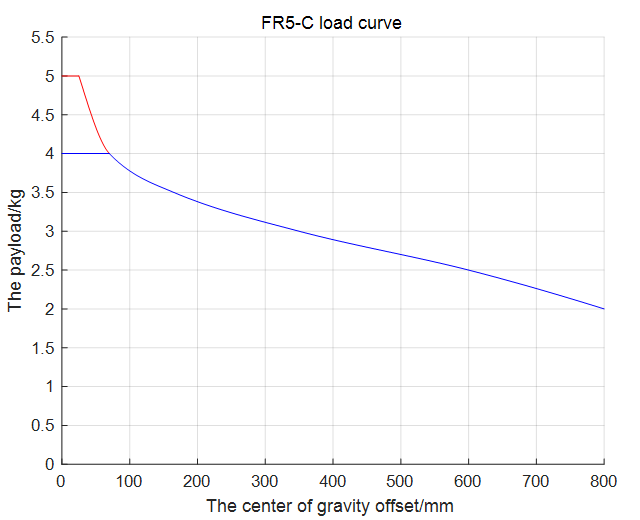
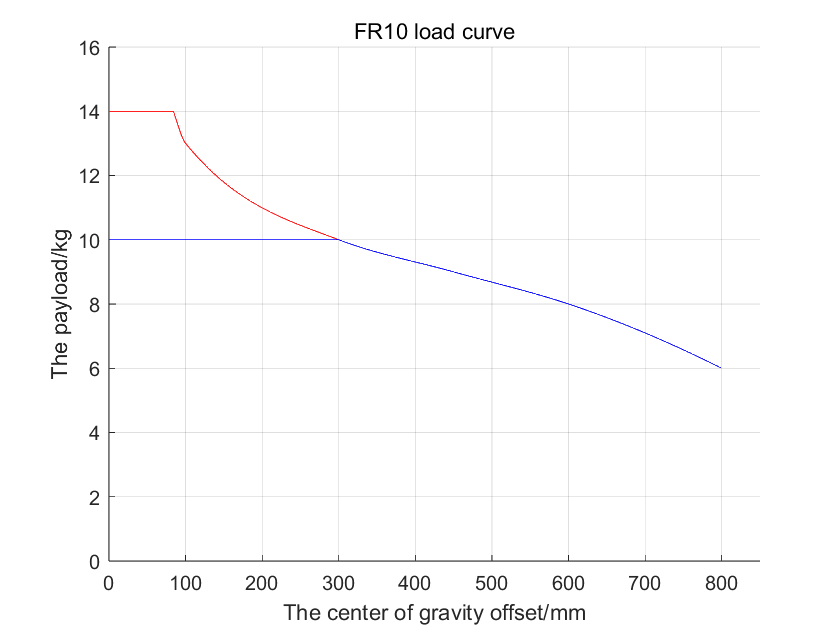
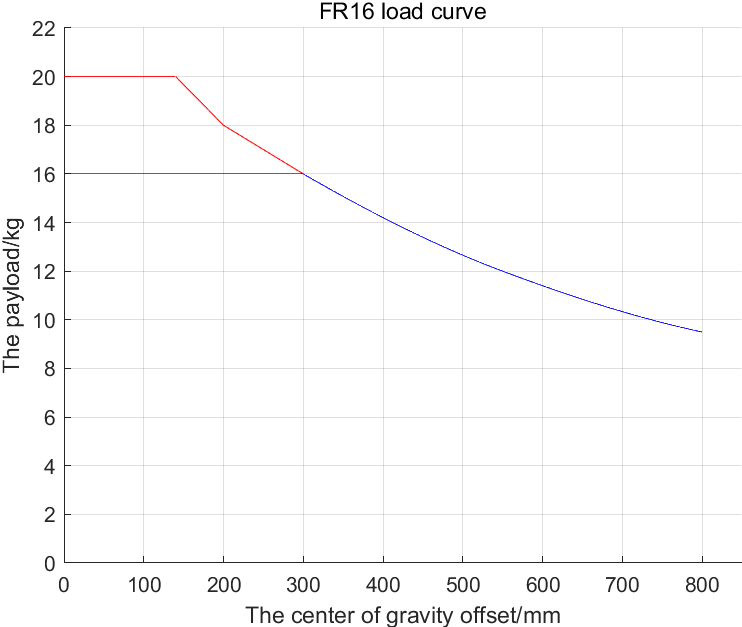
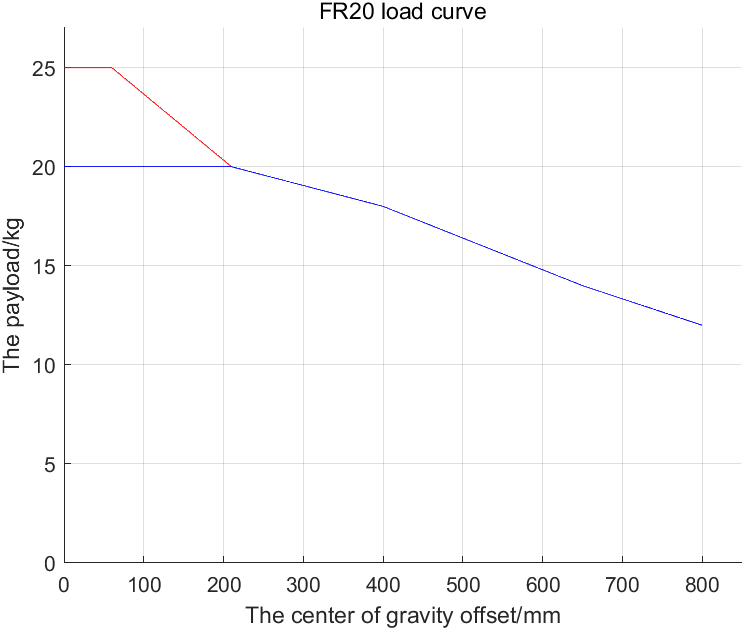
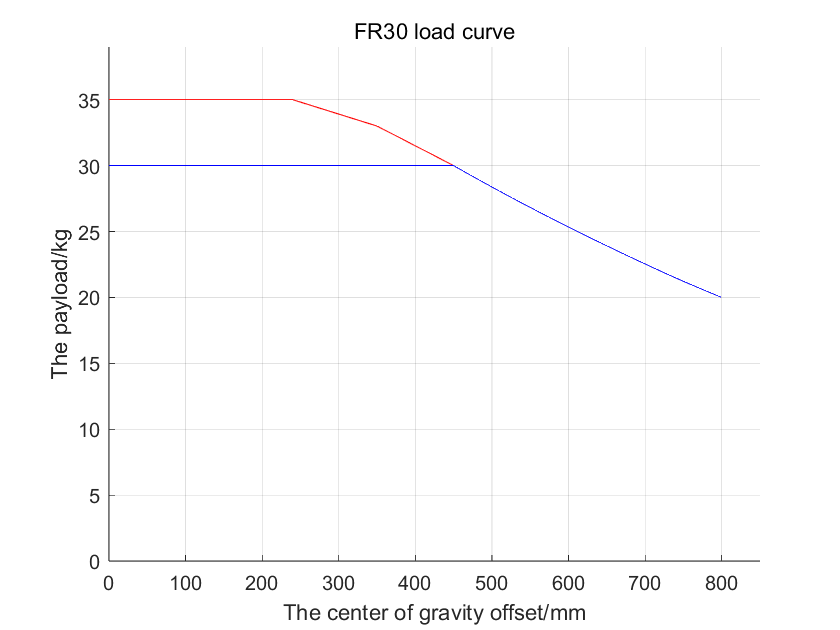
Per ottenere le massime prestazioni, nell’interfaccia web è necessario impostare la compensazione dell’attrito con coefficiente 1 su ogni giunto, livello di collisione 10, velocità al 100% e accelerazione di 360 gradi/s², con la dinamica 2.0 abilitata. Per una capacità di carico estesa è necessaria la modalità di ottimizzazione temporale, rispettando il limite di accelerazione, oppure un intervallo di lavoro o una velocità ridotti. Le curve sono tratte dal manuale d’uso ufficiale di FAIRINO. Non sei sicuro di quale modello sia adatto al tuo pezzo e alla tua pinza? Inviaci il peso e l’offset e lo verificheremo insieme a te.
Modelli SolidWorks e STEP di ogni cobot e controller FR, oltre a file CAD 2D e disegni quotati per la progettazione della vostra cella.
Modelli 3D apertiDocumenti ufficiali di qualificazione e certificazione per il mercato europeo.
Certificati apertiLe ultime versioni del software per robot e SDK scaricabili.
Software liberoTutto in un unico posto: manuali, file da scaricare, SDK e codici di errore.
Portale apertoOntologia e disegni quotati per ciascun modello (da FR3 a FR30): schema di montaggio, area operativa e dimensioni delle flange.
Disegni disponibiliFile DWG relativi ai cobot FR, alle centraline da 2 kW e 5 kW, all'teach pendant e e alla pulsantiera.
CAD 2D apertoModelli di riferimento utilizzati per ristabilire la posizione zero dopo interventi di manutenzione o la sostituzione di un giunto, secondo il modello FR.
Modelli a posizione zero apertaModelli STEP di celle complete: CNC stazioni di lavorazione, pallettizzazione, smistamento e saldatura, oltre al diagramma dell'involucro.
Modelli Open STEPLa documentazione ufficiale illustra ogni aspetto della serie FR. Ecco i capitoli più consultati dai nostri clienti:
Passo dopo passo: montare il braccio, collegare la centralina, accendere e attivare il robot.
Guida apertaCommutare gli ingressi digitali della centralina tra NPN e PNP. Solo la centralina da 2 kW per tensione CA ad ampio intervallo supporta la modalità PNP (EX-24V = NPN, EX-0V = PNP); le centraline per tensione CC e CA a intervallo ristretto supportano esclusivamente la modalità NPN.
Visualizza la guida al cablaggioProgramma il tuo cobot da qualsiasi browser: punti di apprendimento, istruzioni di movimento ed esecuzione dei programmi.
Guida apertaIl manuale ufficiale completo: sicurezza, installazione, parametri, manutenzione e codici di errore.
Apri il manualeSDK gratuiti per Python, C++, C# Java, con una guida completa alle API per ogni funzione.
Apri SDKCollegarsi a PLC e macchine tramite Modbus TCP, Profinet EtherCAT.
Guida apertaPacchetti ufficiali frcobot_ros e frcobot_ros2, con supporto per MoveIt2.
Guida apertaPlugin applicativi già pronti per la WebApp, tra cui il FRCap ufficiale di Palletizer.
Guida apertaAutomatizza la logica avanzata direttamente sul controller con gli script Lua FR Lua .
Guida apertaRilevamento delle collisioni, velocità di sicurezza, I/O di sicurezza e livelli di sicurezza. Il capitolo che ti serve per la tua valutazione dei rischi ai sensi delle norme ISO 10218 e ISO/TS 15066.
Apri il capitolo sulla sicurezzaCablaggio e configurazione degli effettori terminali: pinze elettriche, sistema a vuoto, sensore di forza, I/O utensili e pannello di comando.
Guida alle periferiche OpenCrea programmi trascinando i blocchi invece di scrivere codice. Non serve un programmatore di robot per far funzionare una prima applicazione.
Guida apertaModella la logica complessa come un grafo di nodi: ramificazioni, cicli, flussi paralleli ed eventi nell'editor di WebApp.
Guida apertaInsegnare, memorizzare e riutilizzare i punti, nonché definire i sistemi di coordinate degli utensili (TCP) e dei pezzi.
Guida apertaRoutine predefinite per la pallettizzazione, la saldatura, l'incollaggio e l'asservimento alle macchine, oltre alle impostazioni del pacchetto di processo ad esse associate.
Domande aperteConsente a un dispositivo PLC e o a un PC di avviare, arrestare e guidare il robot, inclusa la modalità slave con protocollo personalizzato per una perfetta integrazione con i macchinari.
Modalità remota apertaCerca il codice di allarme, individua la causa e la soluzione. Inizia da qui prima di chiamare l'assistenza: spesso ti fa risparmiare un'ora.
Apri l'elenco dei codici di errorePosizioni di montaggio, schemi di foratura, cablaggio, raggio d'azione e limiti ambientali per la progettazione delle celle.
Apri il capitolo dedicato all'installazioneCosa è cambiato in ogni versione del software del controller, dalla V3.7 all'attuale V3.9.7. Gli aggiornamenti sono gratuiti a vita.
Apri il registro delle modificheOgni Fairino SDK è gratuito e non richiede licenze. Scegli la lingua, collegati tramite Modbus TCP, Profinet o EtherCAT, oppure controlla il cobot tramite ROS. Link diretti alle documentazioni ufficiali delle API:
Il modo più veloce per programmare un cobot Fairino. Riferimento completo all'API per il movimento, l'I/O, il controllo della forza e il feedback di stato, con codice di esempio.
API Open PythonLibreria nativa " C++ " per il controllo in tempo reale e l'integrazione nel software esistente della macchina. Guida completa alle funzioni.
API Open C++Per applicazioni .NET e controllo di linea basato su Windows. Interfaccia API identica a quella delle librerie C++ e Python .
API Open C#Libreria Java per integrazioni con MES, backend e lato Android, con l'elenco completo delle funzionalità.
API Java apertaVersioni più recenti e precedenti degli SDK di C++, C#, Python e Java, pronte per essere integrate nel tuo progetto.
Apri i download da SDKTutti i codici di ritorno che una chiamata a ` SDK ` può generare, associati al loro significato e all'allarme visualizzato nell'applicazione web.
Codici di errore apertiComunicare con i PLC e le macchine tramite Modbus TCP, Profinet ed EtherCAT: introduzione, cablaggio e configurazione.
Guida alla comunicazione apertaIl formato esatto dei frame per il protocollo CNDE, con le operazioni delle funzioni e la struttura a livello di byte.
Specifiche del protocollo apertoRegistri di ingresso e uscita del controller: a cosa serve ciascun indirizzo, in modo che il tuo programmatore PLC possa iniziare subito.
Apri la mappa dei registriPacchetto ufficiale ROS 1: panoramica, installazione e guida rapida per controllare il cobot tramite ROS.
Apri la guida ROSL'interfaccia fairino_hardware, la guida rapida e la descrizione completa dell'API per ROS 2.
Guida introduttiva a ROS 2Pianificazione del movimento con MoveIt2, compreso il pacchetto di codice di esempio MTC e le avvertenze da leggere prima di iniziare.
Apri la guida di MoveIt2Trasmissione in tempo reale dello stato del robot tramite la porta TCP 8083: posizioni delle articolazioni, velocità, I/O e stato di errore. Il documento di cui il vostro sistema SCADA ha bisogno.
Scarica il protocolloIl set di comandi del controller disponibile all'indirizzo TCP/IP, da utilizzare quando si desidera pilotare il cobot senza un SDK.
Protocollo dei comandi di downloadProva un programma prima ancora che il cobot sia installato nel tuo stabilimento. SimMachine esegue il software del controller reale su un robot virtuale, FRCap aggiunge applicazioni pronte all’uso alla WebApp e Lua automatizza la logica direttamente sul controller. Tutto gratuitamente.
Un simulatore offline gratuito che esegue il software effettivo del controller in una macchina virtuale. È possibile scrivere, eseguire e debuggare programmi su un cobot FR virtuale, per poi caricarli su quello reale.
Introduzione generalePasso dopo passo: installa VMware Workstation, apri l'immagine SimMachine e accedi alla WebApp da Windows.
Apri la guida all'installazioneEseguire SimMachine come container Docker: configurazione, avvio e connessione al controller virtuale.
Guida introduttiva a DockerSimulatore offline gratuito: scarica l’immagine VMware di SimMachine, il pacchetto Docker o il programma di installazione e prova i tuoi programmi su un cobot Fairino virtuale prima di implementarli.
Download di simulazioni aperteImpostazioni di rete, limitazioni note e soluzioni ai problemi più comuni riscontrati dagli utenti quando il controller virtuale non si connette.
Apri l'appendiceInstalla i plug-in dell'applicazione nella WebApp oppure creane di tuoi. Introduzione, guida rapida e procedura guidata di creazione.
Apri la guida rapida di FRCapTutto ciò che ti serve per sviluppare il tuo plug-in: linee guida per lo sviluppo, descrizione delle API e un esempio pratico.
API FRCap apertaIl plug-in ufficiale per la pallettizzazione: definisci schemi di pallettizzazione, strati e punti di avvicinamento senza scrivere una sola riga di codice.
Guida alla pallettizzazione a cielo apertoIl pacchetto di plug-in installabile per il pallettizzatore della WebApp, versione più recente.
Scarica il plug-inEsegui logiche avanzate direttamente sul controller del robot con gli script FR Lua . Include il manuale di programmazione scaricabile “ Lua ”.
Apri il manuale di " Lua "I pacchetti software del controller stessi (versioni QX e LA), in modo che il simulatore e il robot utilizzino la stessa versione.
Scarica il softwareTutti i capitoli della Fairino ufficiale Fairino , ordinati per argomento:
I cobot Fairino escono dalla fabbrica dotati di ingressi digitali NPN (a massa). Solo la versione a tensione ampia CA della mini centralina da 2 kW può essere configurata in modalità PNP (a sorgente). Ecco come verificare se il proprio cobot supporta questa opzione e come modificare l'impostazione.
Il PNP è disponibile solo sulla centralina da 2 kW a tensione ampia in CA. La centralina in CC e quella a tensione ridotta in CA supportano solo l'NPN. Verifica rapida sull'etichetta: una centralina a tensione ampia accetta circa 100-240 V CA, quindi è possibile utilizzare il PNP. Una centralina a tensione ridotta accetta solo circa 178-264 V CA e rimane in modalità NPN.
Su una centralina ad ampio intervallo di tensione, il tipo di ingresso viene selezionato tramite un interruttore DIP all'interno della centralina stessa. Impostarlo sulla posizione EX-24V per l'ingresso NPN oppure sulla posizione EX-0V per l'ingresso PNP. L'impostazione predefinita di fabbrica è NPN.
Collegare gli ingressi DI0-DI7 secondo lo schema NPN o PNP corrispondente, quindi regolare l'impostazione "Stato di validità ingresso generale" (DI0-DI7) nel software se il livello di validità deve corrispondere a quello del sensore.
Leggi la guida al cablaggioScopri cosa significa un codice Fairino e come risolverlo. Sono disponibili tre tabelle: i codici di errore dei robot visualizzati nell’interfaccia web (WebApp) e sull’ teach pendant, i codici di errore dei servoazionatori per le articolazioni e i codici di ritorno dell’ SDK provenienti dai tuoi programmi.
Codici di errore del controller di movimento, visualizzati come codice di errore principale e secondario nell'interfaccia web Fairino (WebApp) e sul sito teach pendant, con l'indicazione della causa e della soluzione per ciascuno di essi.
Apri la tabella dei codici di errore del robotTabella di confronto dei codici di errore di SDK : tutti i codici di ritorno (errcode) relativi a Python, C++, C# e agli SDK Java, con una descrizione e le indicazioni su come risolverli.
Apri la tabella degli errori di " SDK "Tabella dei codici di errore dei servazionamenti: errori segnalati dai servazionamenti delle articolazioni (sovracorrente, sovratensione, encoder e altro), ciascuno con il nome dell'errore e le modalità di gestione.
Apri la tabella dei codici di errore del servomotoreTMC Robotics è un distributore ufficiale Fairino, che opera in tutta Europa dalla nostra sede in Belgio. Forniamo assistenza per l'installazione, la manutenzione, la risoluzione dei problemi, le riparazioni e la manutenzione preventiva, oltre a una sala dimostrativa di 400 m² dedicata alla formazione e alle sessioni di proof-of-concept.
Sì. Fairino è gratuito e ogni cobot include aggiornamenti software gratuiti a vita. È possibile programmarlo da qualsiasi browser, quindi non sono necessarie licenze software aggiuntive.
Le schede tecniche e le specifiche sono disponibili sulle pagine dei nostri prodotti, mentre questa pagina rimanda direttamente ai modelli 3D STEP ufficiali, ai file CAD, ai manuali e agli SDK. Manca qualcosa? Contattaci e te lo invieremo.
Fairino mette a disposizione SDK gratuiti per Python, C++, C# e Java, oltre alla possibilità di utilizzare lo script Lua e direttamente sul controller stesso. È inoltre possibile controllare il robot tramite ROS 1, ROS 2 e MoveIt2, oppure tramite TCP/IP utilizzando il protocollo di comando. Nessuno di questi servizi prevede costi di licenza.
Sì. FAIRINO SimMachine è un simulatore offline gratuito che esegue il software del controller reale in una macchina virtuale, sotto forma di immagine VMware o container Docker. È possibile scrivere e testare il proprio programma su un robot virtuale e caricarlo successivamente sul cobot reale. È inoltre possibile prenotare una sessione nella nostra sala demo in Belgio.
Tramite Modbus TCP, Profinet o EtherCAT. Il capitolo dedicato alla comunicazione con il robot illustra il cablaggio e la configurazione, il documento sul protocollo CNDE descrive i frame di dati e la mappa dei registri I/O elenca in modo preciso la funzione di ciascun registro. Per lo stato in tempo reale è disponibile un flusso di feedback sullo stato sulla porta TCP 8083.
La pagina dedicata alle certificazioni riporta una tabella per ciascun modello: CE-EMC, CE-MD, sicurezza funzionale, protezione IP65, RoHS, NSF e certificati relativi alle prove di resistenza agli urti, oltre a certificati separati per centraline, motori, azionamenti e pinze. Hai bisogno di una copia firmata da archiviare? Richiedicela e te la invieremo.
La tabella di corrispondenza dei codici di errore associa ogni codice di allarme e di ritorno dell'SDK e alla relativa causa e alla soluzione. La maggior parte degli arresti è dovuta al rilevamento di una collisione, al superamento di un limite di corsa o alla mancanza di un segnale di abilitazione. Se la tabella non risolve il problema, contattateci indicando il codice e lo esamineremo insieme a voi.
No. L'applicazione web funziona su qualsiasi browser, quindi un portatile è sufficiente per illustrare i concetti, programmare in modo grafico ed eseguire i programmi. Il telecomando è facoltativo ed è utile soprattutto per eseguire il jogging sul campo o durante l'assistenza.
Per impostazione predefinita, i cobot Fairino utilizzano ingressi NPN (a massa). Solo la versione a tensione ampia CA della mini centralina da 2 kW può essere configurata in modalità PNP (a sorgente); la centralina CC e quella CA a tensione ridotta supportano esclusivamente la modalità NPN. Su una centralina ad ampio intervallo di tensione, impostare l’interruttore DIP all’interno della centralina su EX-24V per NPN o su EX-0V per PNP, quindi collegare DI0-DI7 secondo lo schema corrispondente e, se necessario, regolare l’impostazione “Stato di validità ingresso generale DI0-DI7” nel software.
Solo la versione a tensione ampia in CA della mini centralina da 2 kW supporta la configurazione PNP; può essere impostata su NPN o PNP. La centralina in CC e quella a tensione ridotta in CA supportano solo la configurazione NPN. È possibile distinguerle in base alla tensione nominale di ingresso: una centralina ad ampio intervallo di tensione accetta circa 100-240 V CA (PNP possibile), mentre una centralina a tensione ridotta accetta solo circa 178-264 V CA (solo NPN).
La porta di controllo del robot (interfaccia della pulsantiera) ha l'indirizzo IP predefinito 192.168.58.2. Imposta il tuo computer su 192.168.58.10 (stesso segmento di rete), quindi apri Google Chrome e vai su 192.168.58.2 per accedere all'interfaccia web (WebApp). Le credenziali di accesso predefinite per l'amministratore sono il nome utente "admin" e la password "123". Esistono anche altri ruoli predefiniti, come operatore (555) e supervisore (666). Modifica la password predefinita dopo il primo accesso.
Disponiamo di Fairino in Belgio e forniamo assistenza ai clienti in tutta Europa. Prenota una demo gratuita o richiedi un preventivo: tutti i nostri prezzi sono pubblici.
