Todos los recursos técnicos de la serie Fairino en un solo lugar: fichas técnicas, manuales de usuario, modelos 3D, SDK gratuitos y certificados. ¿Estás desarrollando un proyecto específico? Consúltanos.
Cómo acceder a la interfaz web de Fairino (WebApp) y los datos de inicio de sesión predeterminados. Por motivos de seguridad, cambia la contraseña tras tu primer inicio de sesión.
El puerto de control del robot (interfaz de la caja de botones) tiene la dirección IP predeterminada 192.168.58.2. Conéctalo a tu ordenador con un cable de red, configura tu ordenador con la dirección 192.168.58.10 (en el mismo segmento de red) y, a continuación, abre Google Chrome y accede a 192.168.58.2 para entrar en la aplicación web teach pendant .
Abrir la guía de conexiónLa cuenta de administrador predeterminada es «admin» como nombre de usuario y «123» como contraseña (número de trabajo 111, acceso completo). También existen otros roles predeterminados, como programador (444), operador (555) y supervisor (666). Cambia la contraseña predeterminada tras tu primer inicio de sesión.
Abrir la guía de inicio de sesiónCarga útil: 3 kg; alcance: 622 mm; repetibilidad: ±0,02 mm. Especificaciones completas, curva de carga y precios.
Ver características y precioCarga útil de 5 kg, alcance de 922 mm, repetibilidad de ±0,02 mm. Especificaciones completas, curva de carga y precios.
Ver características y precioCompara la capacidad de carga, el alcance y los precios de toda la Fairino en nuestra página de productos.
Ver todos los modelosFAIRINO oficial FAIRINO , los certificados y los paquetes de descarga en el portal de documentación.
Descargas disponiblesDescarga las últimas versiones del software y del firmware del controlador Fairino, junto con el historial de versiones y las notas de la versión, desde el portal oficial de descargas. Mantén tu cobot actualizado a la última versión.
Consigue la última versión del softwareCapacidad de carga: 10 kg; alcance: 1.400 mm; repetibilidad: ±0,05 mm. Especificaciones completas, curva de carga y precios.
Ver características y precioCarga útil de 16 kg, alcance de 1034 mm, repetibilidad de ±0,03 mm. Especificaciones completas, curva de carga y precios.
Ver características y precioCarga útil de 20 kg, alcance de 1854 mm, repetibilidad de ±0,1 mm. Especificaciones completas, curva de carga y precios.
Ver características y precioCarga útil de 30 kg, alcance de 1403 mm, repetibilidad de ±0,1 mm. Especificaciones completas, curva de carga y precios.
Ver características y precioFR3-WMS, FR3-WML, FR5-WML y el modelo para salas blancas FR3-C: versiones de la serie FR con muñeca hueca y para soldadura, con especificaciones y precios por variante.
Comparar variantesQué certificado se aplica a cada modelo: IP65, CE-EMC, CE-MD, seguridad funcional, RoHS, NSF y protección contra explosiones, enumerados por modelo FR.
Matriz de certificados abiertaLa capacidad real de elevación de un cobot depende de la distancia a la que se encuentre el centro de gravedad de la herramienta con respecto a la brida. Elige uno de los modelos que aparecen a continuación y obtendrás su curva oficial de carga útil directamente del manual de usuario de FAIRINO. La envolvente azul representa el rendimiento máximo, por lo que abarca la mayoría de las trayectorias. La envolvente roja corresponde a la capacidad de carga útil ampliada, que requiere el modo de optimización del tiempo con aceleración limitada o un rango de trabajo más reducido.
Elige un cobot para ver su curva oficial de carga útil. El eje horizontal representa el desplazamiento del centro de gravedad de la herramienta y la pieza, medido desde la brida; el eje vertical representa la carga útil que aún puedes transportar con ese desplazamiento.
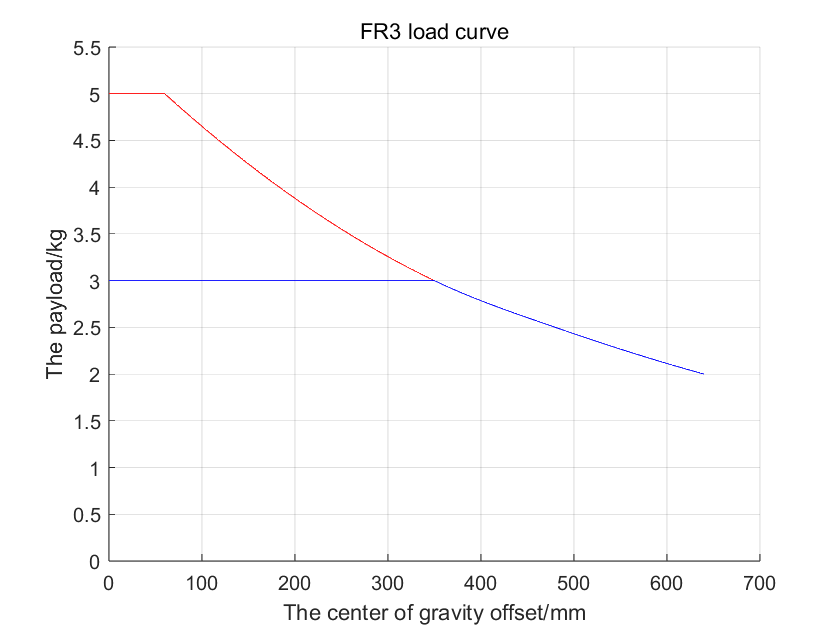
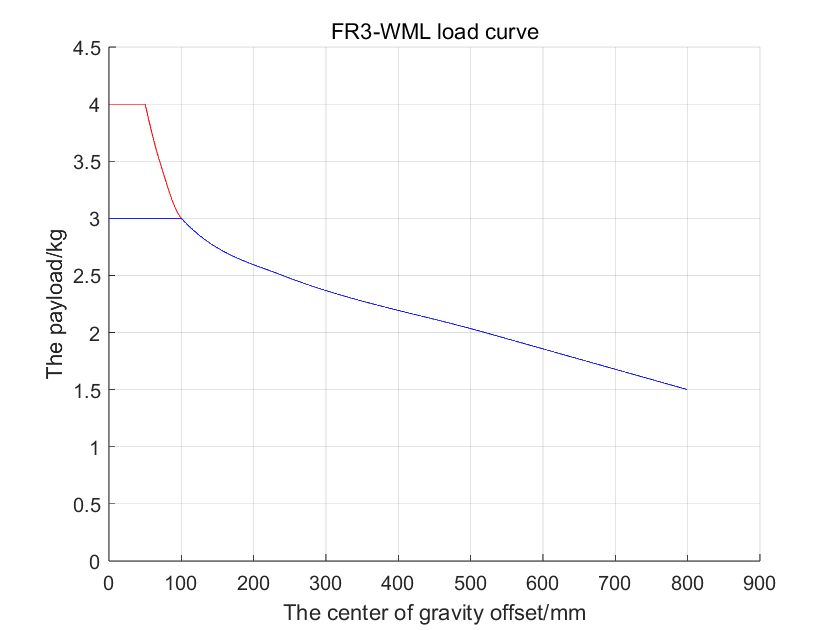
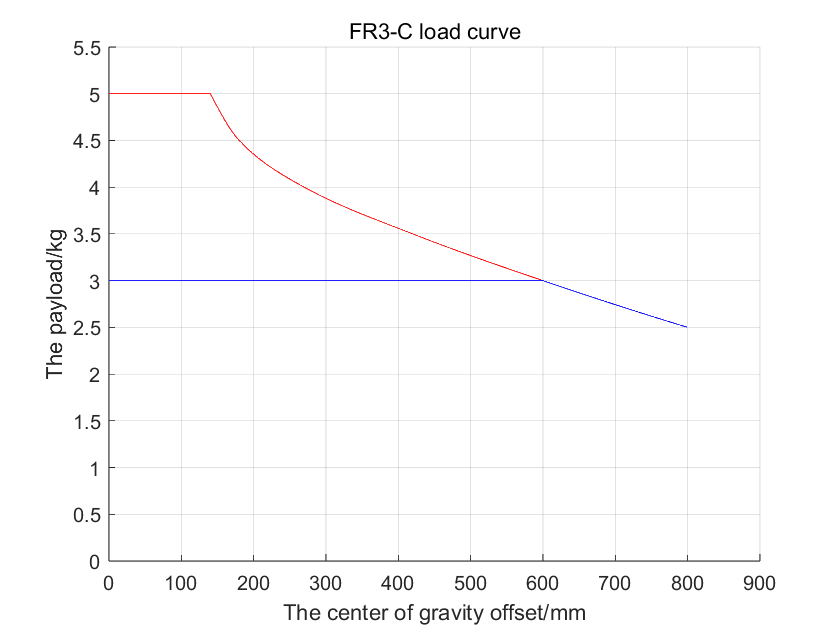
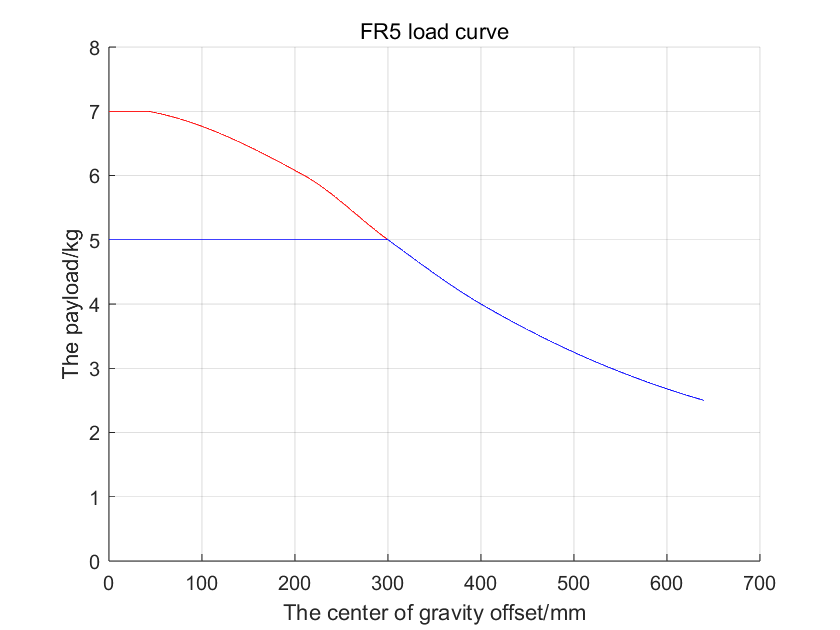
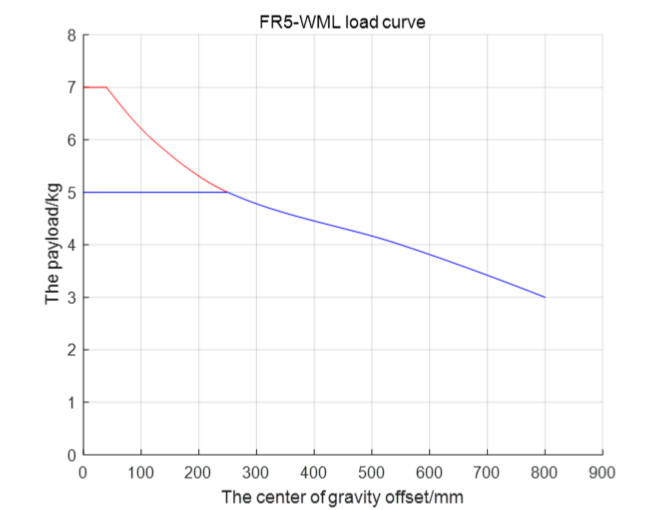
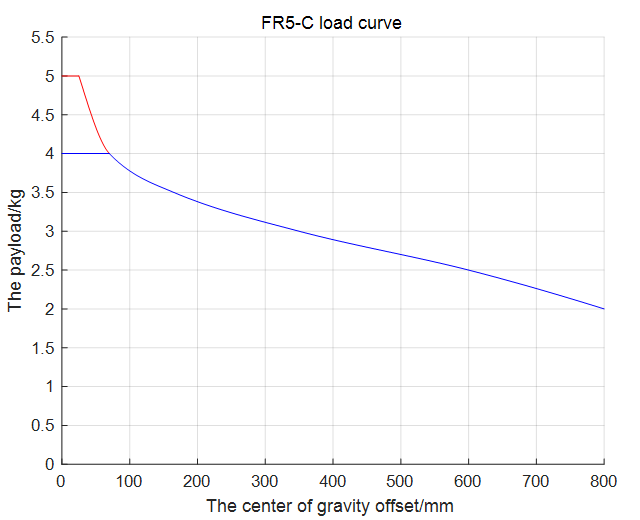
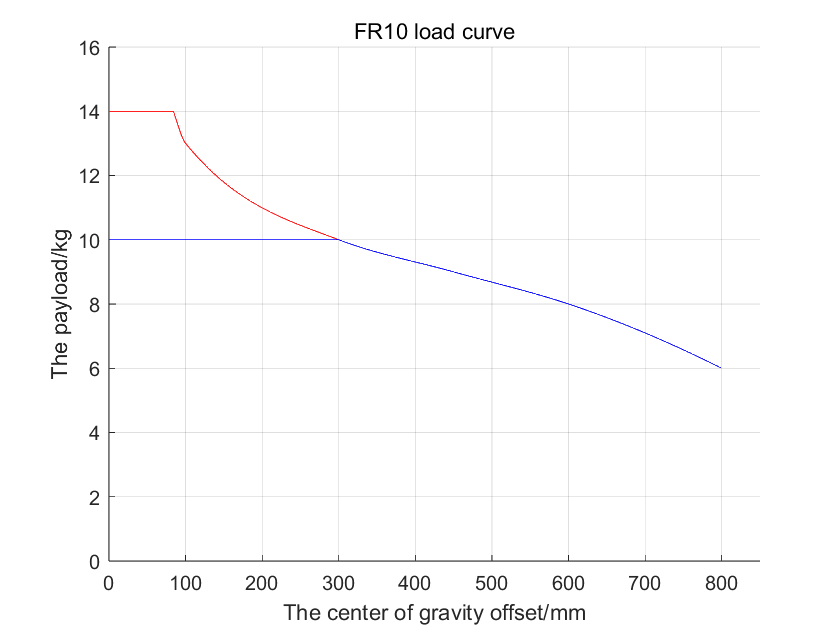
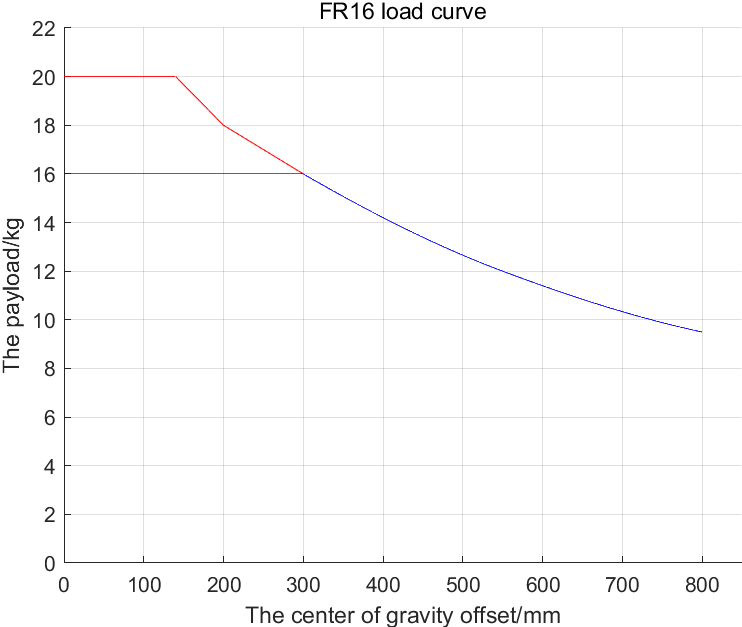
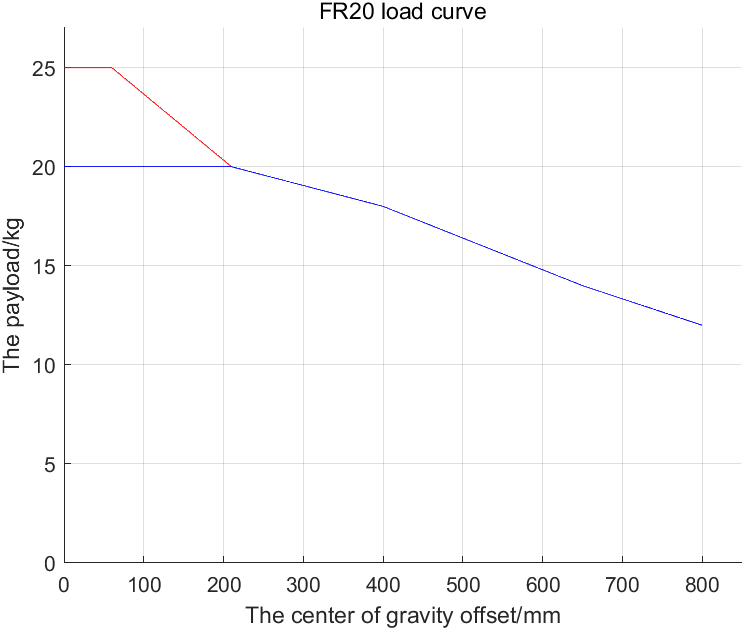
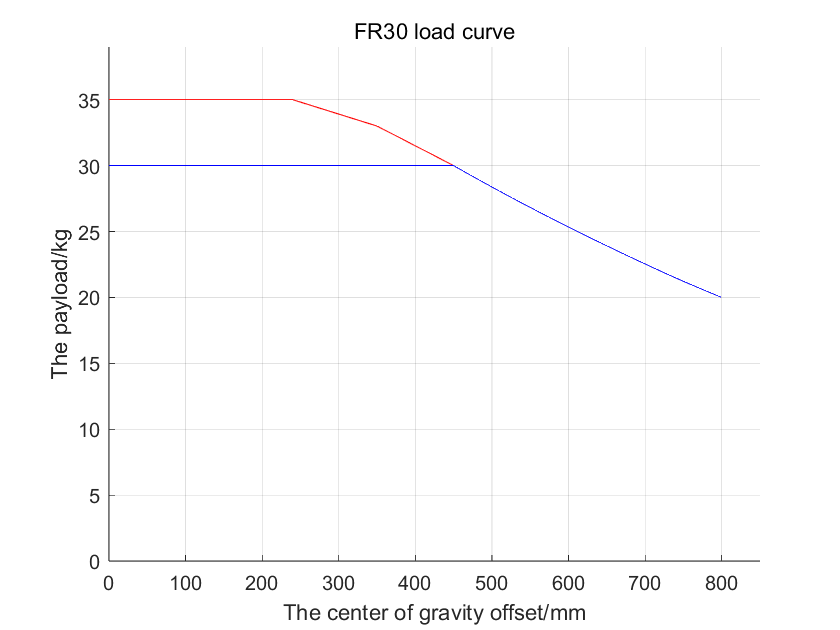
El rendimiento máximo implica una compensación de la fricción con coeficiente 1 en cada articulación, nivel de colisión 10, velocidad al 100 % y una aceleración de 360 grados/s² en la interfaz web, con la dinámica 2.0 activada. Para una mayor capacidad de carga, es necesario utilizar el modo de optimización de tiempo respetando el límite de aceleración, o bien reducir el rango de trabajo o la velocidad. Las curvas proceden del manual oficial de usuario de FAIRINO. ¿No estás seguro de qué modelo se adapta a tu pieza y a tu pinza? Envíanos el peso y el desplazamiento y lo comprobaremos contigo.
Modelos de SolidWorks y STEP de todos los cobots y controladores de FR, además de archivos CAD en 2D y planos acotados para el diseño de tu célula.
Modelos 3D abiertosDocumentos oficiales de cualificación y certificación para el mercado europeo.
Certificados abiertosLas últimas versiones de software para robots y SDK descargables.
Software libreTodo en un solo lugar: manuales, descargas, SDK y códigos de error.
Portal abiertoOntología y planos dimensionales por modelo (FR3 a FR30): esquema de montaje, espacio de trabajo y dimensiones de las bridas.
Planos abiertosArchivos DWG de los cobots FR, las cajas de control de 2 kW y 5 kW, el « teach pendant » y la caja de botones.
CAD 2D abiertoModelos de referencia utilizados para restablecer la posición cero tras un mantenimiento o una sustitución de una articulación, según el modelo FR.
Modelos de posición cero abiertaModelos STEP de células completas: CNC : estaciones de trabajo de manipulación, paletización, clasificación y soldadura, además del diagrama de envolvente.
Modelos Open STEPLa documentación oficial abarca todos los detalles de la serie FR. Estos son los capítulos que más consultan nuestros clientes:
Paso a paso: monta el brazo, conecta la caja de control, enciende el robot y actívalo.
Guía abiertaCambia las entradas digitales de la caja de control entre NPN y PNP. Solo la caja de 2 kW para tensión amplia de CA admite PNP (EX-24 V = NPN, EX-0 V = PNP); las cajas de CC y de tensión estrecha de CA solo admiten NPN.
Ver la guía de cableadoPrograma tu cobot desde cualquier navegador: puntos de aprendizaje, instrucciones de movimiento y ejecución de programas.
Guía abiertaEl manual oficial completo: seguridad, instalación, parámetros, mantenimiento y códigos de error.
Abrir el manualSDK gratuitos para Python, C++, C# Java, con una referencia completa de la API para cada función.
Abrir SDKConéctate a los PLC y a las máquinas a través de Modbus TCP, Profinet EtherCAT.
Guía abiertaPaquetes oficiales frcobot_ros y frcobot_ros2, que incluyen compatibilidad con MoveIt2.
Guía abiertaComplementos de aplicación ya preparados para la WebApp, incluido el FRCap oficial de Palletizer.
Guía abiertaAutomatiza la lógica avanzada directamente en el controlador mediante scripts Lua FR Lua .
Guía abiertaDetección de colisiones, velocidad segura, E/S de seguridad y planos de seguridad. El capítulo que necesitas para tu evaluación de riesgos según ISO 10218 y ISO/TS 15066.
Abrir el capítulo sobre seguridadCableado y configuración de los efectores finales: pinzas eléctricas, sistema de vacío, sensor de fuerza, E/S de herramientas y la caja de botones.
Guía de periféricos de código abiertoCrea programas arrastrando bloques en lugar de escribir código. No hace falta ser programador de robots para poner en marcha una primera aplicación.
Guía abiertaModela la lógica compleja como un grafo de nodos: ramificaciones, bucles, flujos paralelos y eventos en el editor de WebApp.
Guía abiertaEnseñar, almacenar y reutilizar puntos, y configurar los sistemas de coordenadas de la herramienta (TCP) y de la pieza de trabajo.
Guía abiertaRutinas predefinidas para paletización, soldadura, encolado y alimentación de máquinas, además de los ajustes del paquete de procesos que las sustentan.
Solicitudes abiertasPermite que un ordenador « PLC » o un PC ponga en marcha, detenga y dirija el robot, incluido el modo esclavo con protocolo personalizado para una integración perfecta con la maquinaria.
Modo remoto abiertoBusca un código de alarma, averigua cuál es la causa y cómo solucionarlo. Empieza por aquí antes de llamar al servicio de asistencia; a menudo te ahorrará una hora.
Abrir la lista de códigos de errorPosiciones de montaje, esquemas de tornillería, cableado, ámbito de trabajo y límites ambientales para el diseño de las células.
Abrir el capítulo sobre la instalación¿Qué ha cambiado en cada versión del software del controlador, desde la V3.7 hasta la actual V3.9.7? Las actualizaciones son gratuitas de por vida.
Ver el historial de cambiosTodos los Fairino SDK son gratuitos y no requieren licencia. Elige tu idioma, conéctate a través de Modbus TCP, Profinet o EtherCAT, o controla el cobot desde ROS. Enlaces directos a las referencias oficiales de la API:
La forma más rápida de programar un cobot Fairino. Referencia completa de la API para movimiento, E/S, control de fuerza y retroalimentación de estado, con código de ejemplo.
API de « Python » abiertaBiblioteca nativa de C++ para el control en tiempo real y la integración en el software existente de la máquina. Referencia completa de funciones.
API de « C++ » abiertaPara aplicaciones .NET y controles de línea basados en Windows. La misma interfaz de programación de aplicaciones (API) que las bibliotecas C++ y Python .
API de « C# » abiertaBiblioteca Java para integraciones con MES, backend y el lado de Android, con la lista completa de funciones.
API abierta de JavaVersiones recientes y anteriores de los SDK de C++, C#, Python y Java, listas para incorporarlas a tu proyecto.
Descargas de « SDK »Todos los códigos de retorno que puede generar una llamada a ` SDK `, junto con su significado y la alarma que se muestra en la aplicación web.
Códigos de error abiertosComunicación con los PLC y las máquinas a través de « Modbus TCP », « Profinet » y EtherCAT: introducción, cableado y configuración.
Guía para una comunicación abiertaEl formato exacto de los tramas del protocolo CNDE, con las operaciones de las funciones y la estructura a nivel de bytes.
Especificaciones del protocolo abiertoRegistros de entrada y salida del controlador: qué hace cada dirección, para que tu programador PLC pueda empezar de inmediato.
Abrir mapa de registrosPaquete oficial de ROS 1: descripción general, instalación y guía rápida para controlar el cobot desde ROS.
Guía de ROS abiertaLa interfaz fairino_hardware, la guía de inicio rápido y la descripción completa de la API para ROS 2.
Guía de ROS 2 abiertaPlanificación de movimientos con MoveIt2, incluido el paquete de código de ejemplo de MTC y las advertencias que conviene leer primero.
Abrir la guía de MoveIt2Transmite en directo el estado del robot a través del puerto TCP 8083: posiciones de las articulaciones, velocidades, E/S y estado de error. El documento que necesita tu SCADA.
Descargar protocoloEl conjunto de comandos del controlador, disponible en TCP/IP, para cuando se desee manejar el cobot sin un SDK.
Protocolo de comandos de descargaPrueba un programa antes incluso de que el cobot esté instalado en tu planta. SimMachine ejecuta el software real del controlador en un robot virtual, FRCap añade aplicaciones ya preparadas a la WebApp y Lua automatiza la lógica en el propio controlador. Todo ello de forma gratuita.
Un simulador gratuito que funciona sin conexión y ejecuta el software real del controlador en una máquina virtual. Escribe, ejecuta y depura programas en un cobot FR virtual y, a continuación, cárgalos en el cobot real.
Introducción generalPaso a paso: instala VMware Workstation, abre la imagen de SimMachine y accede a la aplicación web desde Windows.
Abrir la guía de instalaciónEjecutar SimMachine como contenedor de Docker: configuración, puesta en marcha y conexión al controlador virtual.
Guía de Open DockerSimulador gratuito sin conexión: descarga la imagen de VMware de SimMachine, el paquete de Docker o el instalador del software y prueba tus programas en un cobot Fairino virtual antes de implementarlos.
Descargas de simulaciones abiertasConfiguración de red, limitaciones conocidas y soluciones a los problemas más habituales que se producen cuando el controlador virtual no se conecta.
Apéndice abiertoInstala complementos de aplicaciones en la WebApp o crea los tuyos propios. Introducción, guía de inicio rápido y asistente de creación.
Abrir la guía de inicio rápido de FRCapTodo lo que necesitas para desarrollar tu propio complemento: guía de desarrollo, descripción de la API y un ejemplo práctico.
API abierta de FRCapEl complemento oficial de paletización: define patrones de paletización, capas y puntos de aproximación sin escribir ni una sola línea de código.
Guía de paletización abiertaEl paquete de complementos de paletizador instalable para la WebApp, última versión.
Descargar el complementoEjecuta lógica avanzada directamente en el controlador del robot con scripts FR « Lua ». Incluye el manual de programación « Lua », disponible para su descarga.
Abrir el manual de « Lua »Los propios paquetes de software del controlador (versiones QX y LA), de modo que el simulador y el robot ejecutan la misma versión.
Descargar softwareTodos los capítulos de la Fairino oficial Fairino , ordenados por tema:
Los cobots Fairino salen de fábrica con entradas digitales NPN (de nivel bajo). Solo la versión de amplio rango de tensión de CA de la minicaja de control de 2 kW se puede configurar en modo PNP (de nivel alto). A continuación te explicamos cómo comprobar si tu cobot es compatible con esta función y cómo cambiar la configuración.
El PNP solo es posible en la caja de control de CA de amplio rango de tensión de 2 kW. La caja de CC y la caja de CA de rango de tensión reducido solo admiten NPN. Comprobación rápida en la etiqueta: una caja de amplio rango de tensión admite entre 100 y 240 V CA, por lo que es compatible con PNP. Una caja de rango de tensión reducido solo admite entre 178 y 264 V CA y sigue siendo NPN.
En una caja de amplio rango de tensión, el tipo de entrada se selecciona mediante un interruptor DIP situado en el interior de la caja de control. Ajústalo a la posición EX-24V para una entrada NPN, o a la posición EX-0V para una entrada PNP. La configuración predeterminada de fábrica es NPN.
Conecta las entradas DI0-DI7 según el esquema correspondiente (NPN o PNP) y, a continuación, ajusta la configuración «Estado de validez de entrada general» de DI0-DI7 en el software si el nivel válido debe coincidir con el de tu sensor.
Lee la guía de cableadoBusca qué significa un código Fairino y cómo resolverlo. Hay tres tablas: los códigos de error del robot que aparecen en la interfaz web (WebApp) y en teach pendant, los códigos de error de los controladores de servo de las articulaciones y los códigos de respuesta de SDK procedentes de tus propios programas.
Códigos de error del controlador de movimiento, que aparecen como código de error principal y secundario en la interfaz web de Fairino (WebApp) y en teach pendant, junto con la causa y la solución de cada uno.
Abrir la tabla de códigos de avería del robotTabla comparativa de códigos de error de SDK : todos los códigos de retorno (errcode) de Python, C++, C# y los SDK de Java, con una descripción y cómo solucionarlos.
Abrir la tabla de errores de « SDK »Tabla de códigos de avería del controlador del servo: averías detectadas por los controladores de servo de las articulaciones (sobrecorriente, sobretensión, codificador y otras), cada una con el nombre de la avería y cómo solucionarla.
Abrir la tabla de códigos de avería del servoTMC Robotics Es un distribuidor oficial de Fairino que opera en toda Europa desde nuestra sede en Bélgica. Ofrecemos asistencia para la instalación, mantenimiento, resolución de problemas, reparaciones y mantenimiento preventivo, además de una sala de demostraciones de 400 m² para sesiones de formación y pruebas de concepto.
Sí. Fairino no requiere licencia y cada cobot incluye actualizaciones de software gratuitas de por vida. Se programa desde cualquier navegador, por lo que no se necesitan licencias de software adicionales.
Las fichas técnicas y las especificaciones se encuentran en nuestras páginas de productos, y esta página enlaza directamente con los modelos 3D STEP oficiales, los archivos CAD, los manuales y los SDK. ¿Echas algo en falta? Ponte en contacto con nosotros y te lo enviaremos.
Fairino ofrece SDK gratuitos para Python, C++, C# y Java, además de la posibilidad de programar c Lua o en el propio controlador. También puedes controlar el robot desde ROS 1, ROS 2 y MoveIt2, o a través de TCP/IP con el protocolo de comandos. No hay que pagar ninguna cuota de licencia por ninguno de ellos.
Sí. FAIRINO SimMachine es un simulador gratuito que funciona sin conexión y que ejecuta el software real del controlador en una máquina virtual, ya sea como imagen de VMware o como contenedor de Docker. Puedes escribir y probar tu programa en un robot virtual y, posteriormente, cargarlo en el cobot real. También puedes reservar una sesión en nuestra sala de demostraciones en Bélgica.
A través de Modbus TCP, Profinet o EtherCAT. El capítulo sobre comunicación del robot trata el cableado y la configuración; el documento sobre el protocolo CNDE describe las tramas de datos; y el mapa de registros de E/S detalla exactamente qué función cumple cada registro. Para conocer el estado en tiempo real, hay un flujo de información de estado en el puerto TCP 8083.
La página de certificación incluye una tabla por modelo: CE-EMC, CE-MD, seguridad funcional, protección IP65, RoHS, NSF y certificados de ensayos de resistencia al impacto, además de certificados independientes para cajas de control, motores, controladores y pinzas. ¿Necesitas una copia firmada para tu archivo? Pídenosla y te la enviaremos.
La tabla de comparación de códigos de error asocia cada alarma y cada código de retorno de « SDK » a su causa y solución. La mayoría de las paradas se deben a la detección de colisiones, a un límite de articulación o a la falta de una señal de habilitación. Si la tabla no te ayuda a resolver el problema, ponte en contacto con nosotros indicando el código y lo analizaremos contigo.
No. La aplicación web funciona en cualquier navegador, por lo que basta con un ordenador portátil para explicar conceptos, programar de forma gráfica y ejecutar programas. El mando a distancia es opcional y resulta útil sobre todo para poner en marcha el sistema en el suelo o durante el mantenimiento.
Por defecto, los cobots Fairino utilizan entradas NPN (de tipo «sinking»). Solo la versión de CA de amplio rango de tensión de la minicaja de control de 2 kW puede configurarse en modo PNP (de tipo «sourcing»); la caja de CC y la caja de CA de rango de tensión reducido son exclusivamente NPN. En una caja de amplio rango de tensión, configura el interruptor DIP situado en el interior de la caja de control en EX-24V para NPN o en EX-0V para PNP; a continuación, conecta DI0-DI7 según el esquema correspondiente y, si es necesario, ajusta la configuración «Estado válido de entrada general» de DI0-DI7 en el software.
Solo la versión de voltaje amplio de CA de la minicaja de control de 2 kW es compatible con PNP; se puede configurar en NPN o PNP. La caja de CC y la caja de voltaje estrecho de CA solo admiten NPN. Esto se puede deducir de la tensión nominal de entrada: una caja de amplio rango de tensión admite entre 100 y 240 V CA (con posibilidad de PNP), mientras que una caja de rango estrecho de tensión solo admite entre 178 y 264 V CA (solo NPN).
El puerto de control del robot (interfaz de la caja de botones) tiene la dirección IP predeterminada 192.168.58.2. Configura tu ordenador con la dirección 192.168.58.10 (en el mismo segmento de red) y, a continuación, abre Google Chrome y accede a 192.168.58.2 para entrar en la interfaz web (WebApp). Los datos de acceso predeterminados del administrador son el nombre de usuario «admin» y la contraseña «123». También existen otros roles predeterminados, como el de operador (555) y el de supervisor (666). Cambia la contraseña predeterminada tras tu primer inicio de sesión.
Disponemos de Fairino en Bélgica y ofrecemos asistencia a clientes de toda Europa. Reserva una demostración gratuita u obtén un presupuesto; todos nuestros precios son públicos.
